Tutorial
Managing Persona Portraits
Generate an alternative to the portrait that was originally created when the persona was locked or select a portrait from those previously generated.
Portraits are normally used on the front face of a persona’s card and on the Character Study and it’s associated PDF. If you feel portraits go too far in anthropomorphizing agents or object on philosophical or psychological grounds then portrait generation is not for you. Instead, in the app, you can go to settings and substitute the Personality Knot Sigil for Portrait images.
Use these steps to generate and manage alternate persona portraits.
Bad Portraits Happen
It is not intended that portraits be customizable at the detail level. Rather they are intended to paint a plausible picture of what the demeaner and setting of a person with such a persona might be. They provide a visual index to help you quickly tell one persona from another.
Still, there may be times when you are not satisfied with the portrait that is automatically generated (framing, style or face) or it may have flaws - AI generated art is still imperfect. You get a few chances to regenerate your persona’s portrait. The initial portrait is framed and styled based on application defaults that can be changed in settings.
A persona must have been previously locked for it to have a portrait. This tutorial only applies to locked personas.
Select a (locked) persona card
From the Gallery or the Library, select any previously locked persona to view its expanded card. A persona must be locked before you can generate and manage alternate portraits. Select Portraits from the cards action bar menu. This will open the Portrait dialog.
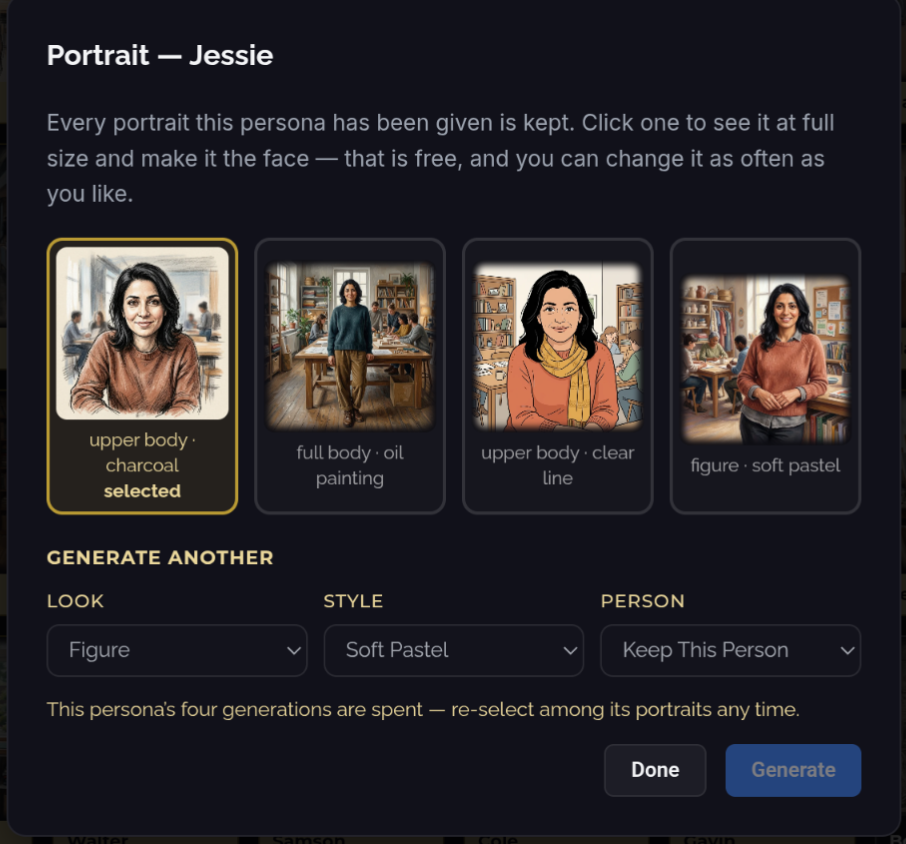
View portraits & select an alternate
All portraits that have been generated for a persona are displayed in this dialog. Select one to view it. From the expanded image you can select it as the persona’s display portrait or download it.
Generate an alternate portrait image
A limited number of alternative portraits may be generated for each persona. This limit appears at the bottom of the dialog.
You have a few choices you can make to steer the alternate image. From the drop-down menus select:
| Attribute | Controls… |
|---|---|
| Look | Framing - roughly how much of the subject appears in the image |
| Style | Artistic style or medium to use |
| Person | Chose to retain the general face/features from the last image or reimagine a new one |
| Press Generate to create a new alternate portrait image for your persona. | |
| Press Done when you are ready to move on. |